
In this tutorial, we’ll walk you through the key features of managing tags, notes, and transcripts in your chat system. You’ll learn how to efficiently organize conversations with tags, add internal comments with notes, and handle conversation transcripts effectively.
Here, you can access information regarding a variety of features associated with conversations.
Tags
Tags enable more efficient organization and grouping of conversations. Please refer to the information below for further details.
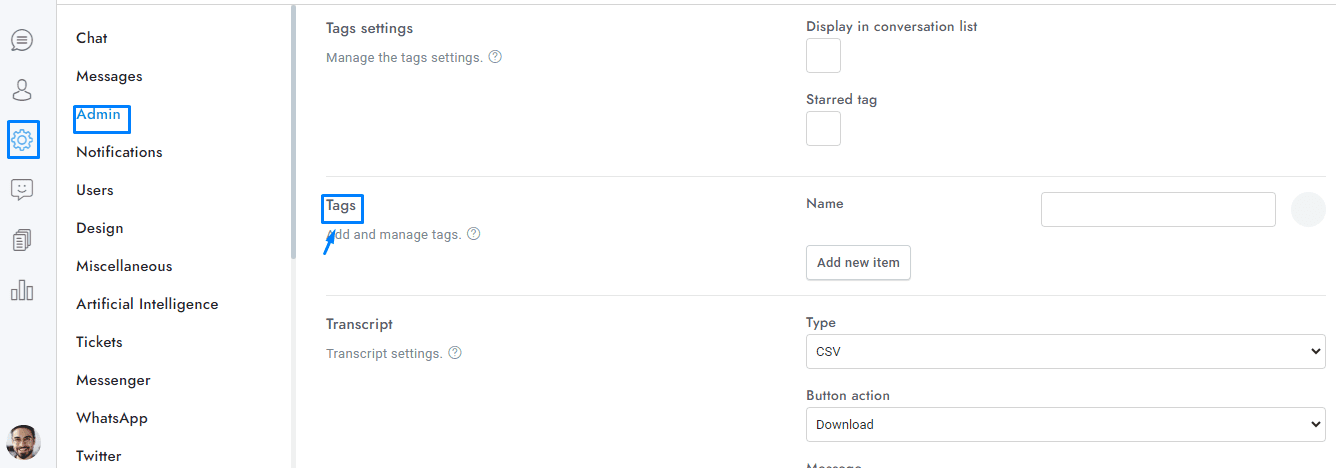
- You can manage the tags from Settings > Admin > Tags.
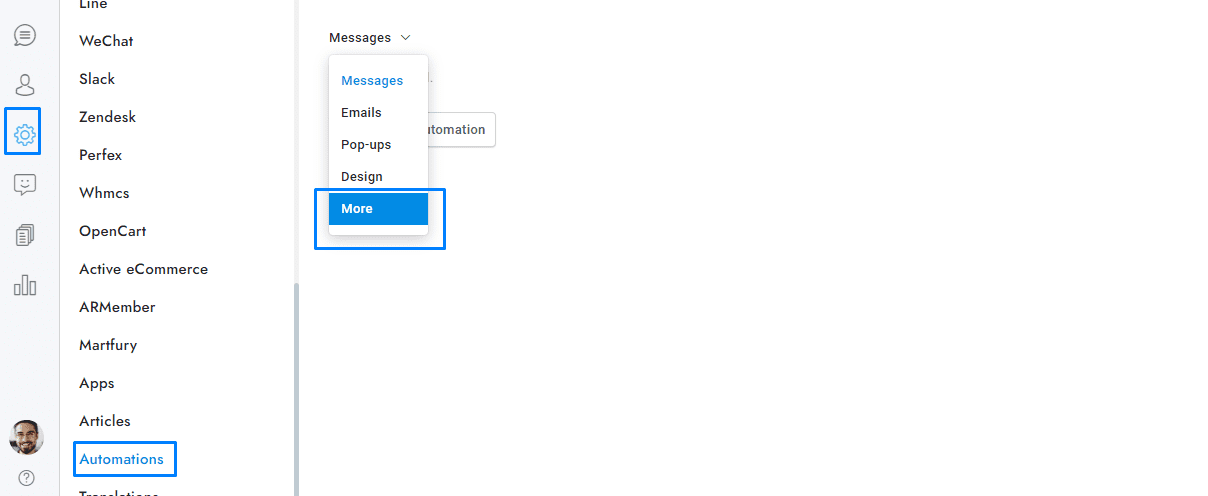
- Tags can be assigned to conversations through different methods: via the admin area by navigating to Settings > Automations > More, through Dialogflow actions, and by inserting the JS variable SB_DEFAULT_TAGS into a page showing the chat or into a web page displaying the chat or the tickets panel.
- To locate conversations with specific tags, simply enter the tag names into the search bar located at the top-left corner of the admin conversations area, or you can select the desired tag from the dedicated filters menu on top-left. The tags filter is visible only if at least one tag is assigned to a conversation.
- Check the Starred tag option to display the starred tag icon in the conversations area. This allows you to select conversations assigned to the first tag with one click. The first tag on top is always the starred tag.
- You can disable the tags from Settings > Admin > Disable tags.
Notes
Notes allow users to add comments to conversations that are only visible to agents and admins.
- If you are usign OpenAI, we suggest enabling the note data scraping option.
Transcript
The full conversation can be sent to the user by the agent or admin as a transcript file.
- Agents and admins can send conversation transcripts to users by clicking the Transcript button in the top-right corner of the admin’s conversation window.
- You can autoamtically send the transcript to the user when you archive a conversation by using the close message available at Settings > Messages > Close message.
- You can send the transcript to the user only if the user has an email.
If you have additional doubts, remember that you can always contact us.