
This tutorial will guide you through integrating Zapier with Chat using webhooks. Learn to set up triggers and automate workflows by connecting Chat with other applications via Zapier.
Zapier app
Use the Zapier app available at.
Manual integration
Integrate Zapier with Chat by following the steps below. Integration is based on the Chat webhooks, each webhook is a Zapier trigger, so you have 15+ Zapier triggers available, for more details. You can ask to the AI here.
- Go to https://developer.zapier.com/ and login, or register a new account.
- Create a new integration by clicking Start a Zapier Integration, or visit https://developer.zapier.com/app/new. Fill in all required fields, like name and description, and click Create, you can enter any text you want, but keep the name of the app in mind because you will need it later.
- From the left menu click Triggers and then Add Trigger.
- Fill in all required fields, like key and description, and click Save And Continue, you can enter any text you want.
- On top click API Configuration, choose REST Hook as Trigger Type, and click Save.
- Go back to the Settings area of the trigger, or go to https://zapier.com/app/zaps, and click Create a Zap.
- Search for your newly created app by entering the app name and click it. In Trigger Event select your trigger and click continue.
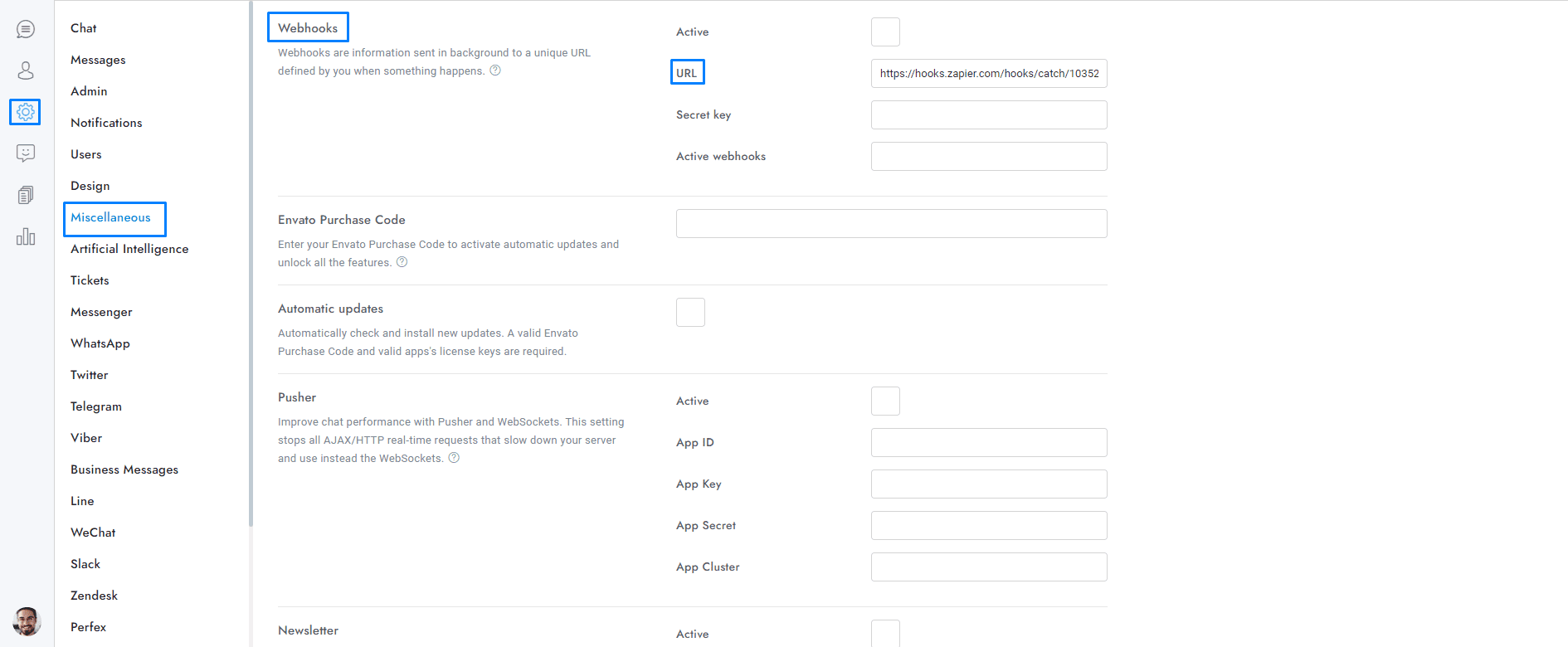
- Copy the Webhook URL, click Continue, and then enter the Chat admin area and enter it into Settings > Miscellaneous > Webhooks > URL, activate the webhooks, save the settings and reload Chat.
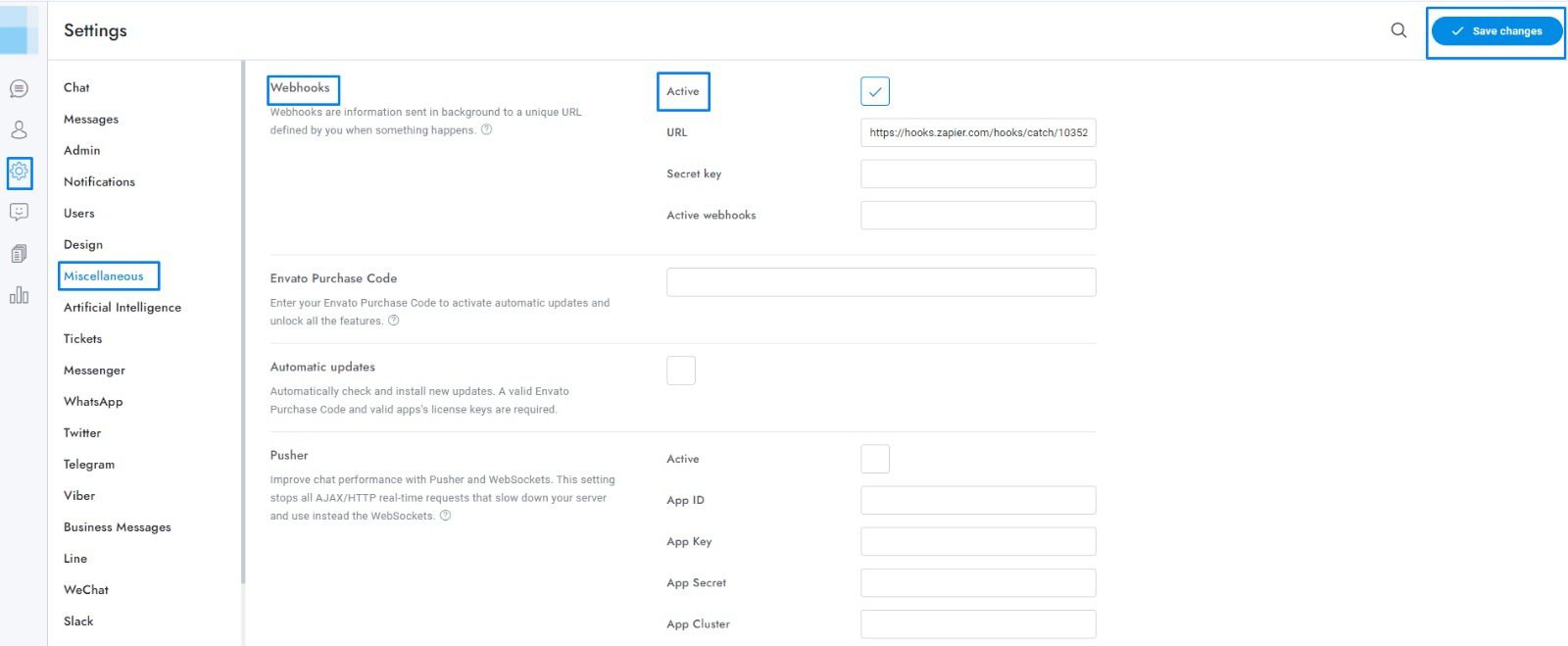
- Make something to trigger a webhook like sending a message, or creating a new user, then go back to Zapier and click Test Trigger and you should see the Chat webhook data. Click Continue.
- Click the right button Filters and set up the filter in order to trigger the integration only if a variable exists. You need the filter because Chat will send all webhooks to all zaps. Example: if your zap wants to integrate the messages of Chat , you will need to set the filter to continue only if the variable message exists.
- Click Continue, or + and add your integration.
- To use multiple zaps and webhooks you will need to update Settings > Miscellaneous > Webhooks > URL and add the new zap IDs, separated by commas. Example: if you have two zaps with URLs https://hooks.zapier.com/hooks/catch/10352851/bbad21f/ and https://hooks.zapier.com/hooks/catch/10352851/aaaa66t/, the URL must be https://hooks.zapier.com/hooks/catch/10352851/bbad21f,aaaa66t/.
If you have additional doubts, remember that you can always contact us.