
Welcome to our guide on integrating LINE with Chat! In this tutorial, we’ll walk you through the process of setting up your LINE bot, configuring synchronization settings, and ensuring smooth message flow into Chat.
- Login at https://developers.line.biz/console/ or create a new account.
- Create a new Provider and then a new Messaging API channel, select Messaging API as channel type
- From the channel Basic settings area copy Channel secret and paste it into Chat > Settings > Line > Synchronization > Channel secret.
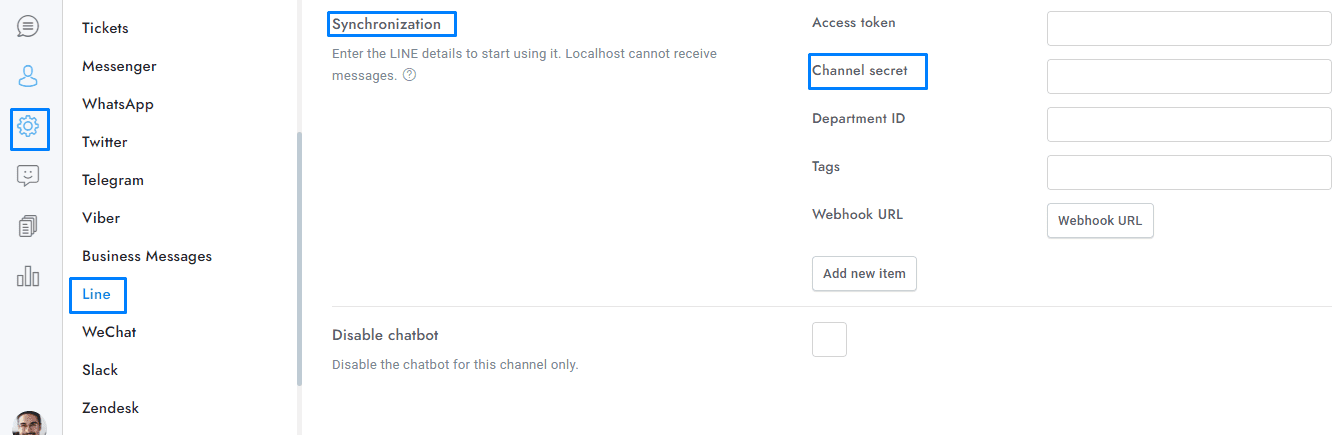
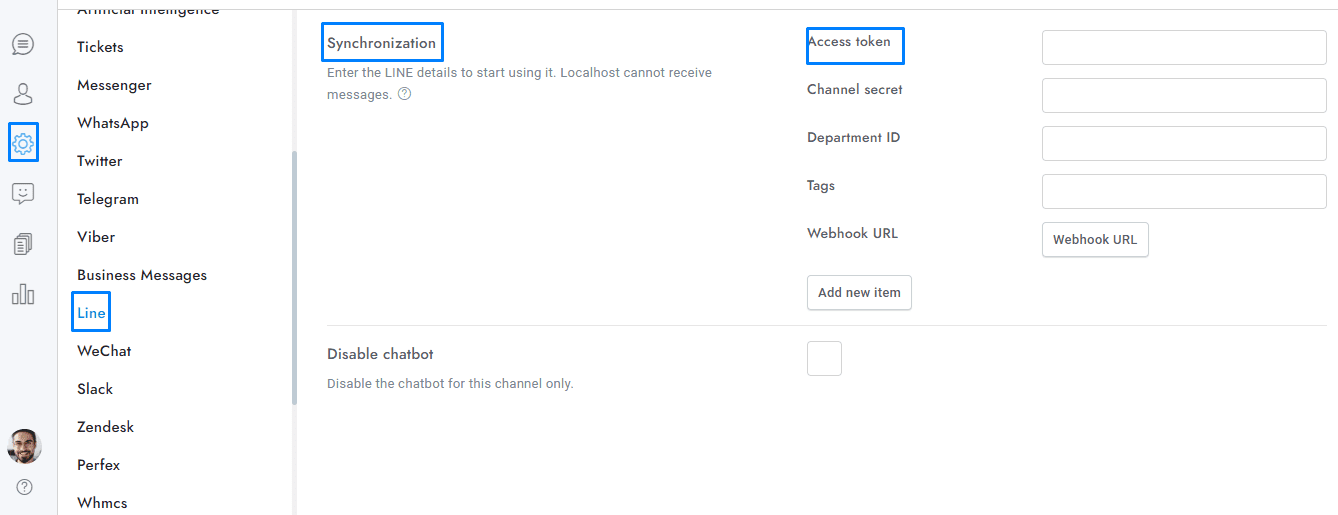
- From the channel Messaging API area generate a Channel access token (long-lived), copy it and paste it into Chat > Settings > Line > Synchronization > Access token.
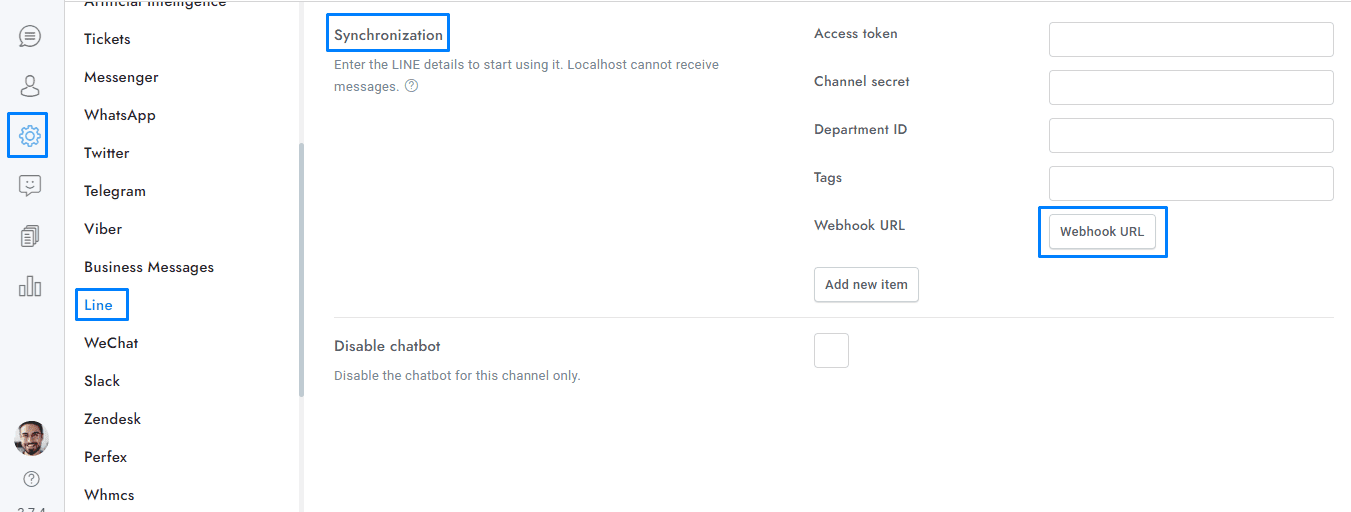
- Enter your Webhook URL into Webhook URL and click Verify. Get the Webhook URL from Chat > Settings > Line > Synchronization > Webhook URL.
- Enable Use webhook.
- Scan the QR code with your LINE mobile app to start writing to your channel.
- Disable the Auto-reply messages setting.
- You’re done. All messages sent to your LINE bot account will appear in the conversation admin area of Chat.If you have additional doubts, remember that you can always contact us.